2026-11-07 · 18 min read
Git Branching Strategies and Commands: A Practical Guide
Master Git branching workflows, production releases, hotfixes, and essential commands, from everyday operations to advanced techniques like rebase and cherry-pick.
You finish a feature, push your code, and open a pull request. Easy enough. But what happens after that? How does your change get tested, reach staging, and eventually become the version customers use? What if production breaks while your team is halfway through the next release?
Git is more than a place to store code. With a sensible workflow, it helps teams collaborate, release software, and recover from mistakes. In this guide, we'll learn how to organize branches and ship an application, then cover everyday Git commands, and finally explore advanced commands through realistic scenarios.
One distinction to remember: Git branches store versions of code; environments run deployed versions of an application. A branch named
proddoes not deploy anything by itself. Your CI/CD pipeline makes that connection.
Part 1: Branching strategies and deploying an application
First, what is a branch?
Imagine your team's application is a book. A Git branch is a separate line of edits to that book. You can develop a new chapter without changing the published edition. Once your changes are reviewed and tested, you can merge them into the main story.
A branch is a movable pointer to a commit, not a full copy of the repository. Creating one is cheap:
git switch -c feature/user-profile
# Work, commit, and push your changes
git push -u origin feature/user-profile
A pull request (PR) is a collaboration and review mechanism provided by platforms such as GitHub and GitLab; it is not a Git command.
A multi-environment branching model: dev → test → staging → prod
Some organizations maintain long-lived branches corresponding to deployment stages:
| Branch | Purpose | Typical deployment |
|---|---|---|
dev | Integrate completed feature work | Development environment |
test | Test a candidate with automated and manual QA | Shared test environment |
staging | Validate a release candidate in a production-like setup | Staging / UAT environment |
prod | Track the approved production release | Production environment |
feature/* | Isolate a new change | Preview environment, optionally |
hotfix/* | Repair a production issue quickly | Temporary verification environment |
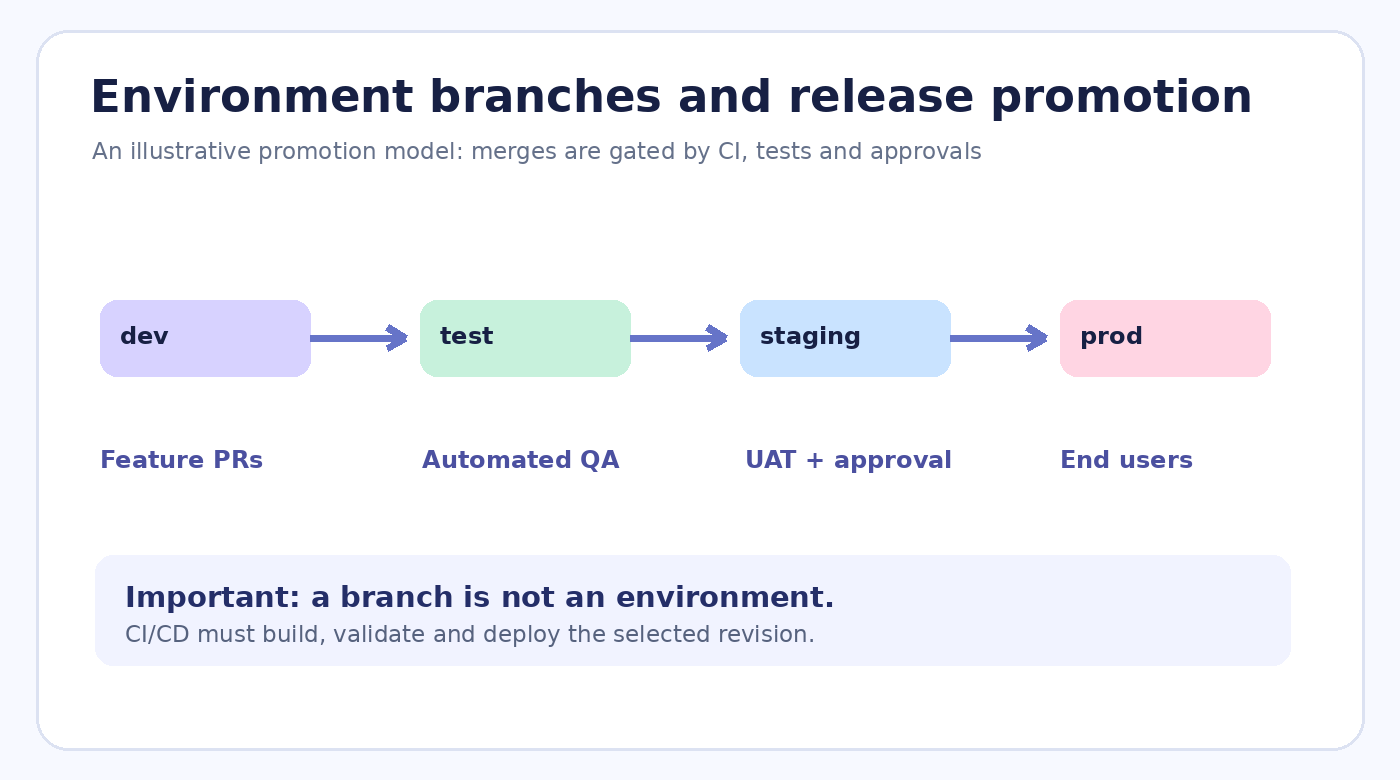
Example: shipping a new checkout page. Your team could follow these steps:
- Start from the latest
devand createfeature/new-checkout. - Implement the feature and open a PR into
dev. CI runs linting, type checks, unit tests, and security checks. - Merge after review. The pipeline deploys
devto the development environment. - When the team agrees on a test candidate, open a PR from
devtotest. QA tests the resulting deployment. - Promote the approved candidate from
testtostaging. Run end-to-end tests and user acceptance testing against production-like configuration. - Promote the approved revision to
prod, require the necessary approval, and deploy to end users. - Tag the release so everyone can identify exactly what was shipped.
# Example: after the approved commit has reached prod
git switch prod
git pull --ff-only origin prod
git tag -a v1.8.0 -m "Release v1.8.0"
git push origin v1.8.0
In practice, the promotion steps are usually performed using protected branches and PRs rather than direct local pushes. Your CI/CD platform can map branch updates to environments, but it should also record the exact commit SHA and deployment artifact.
A subtle but important detail: merging dev into test, then test into staging, can bring in more changes than intended if branches drift. Freeze a release candidate, review the diff, and ideally build once and promote the same immutable artifact through environments. Rebuilding the application separately for each environment can introduce differences that QA never tested.
What does the CI/CD pipeline actually do?
A typical pipeline looks like this:
Developer pushes branch
        ↓
Pull request → lint + typecheck + unit tests
        ↓
Merge approved revision
        ↓
Build versioned artifact (commit SHA / image digest)
        ↓
Deploy to dev → integration tests
        ↓
Promote artifact to test → QA
        ↓
Promote artifact to staging → UAT / smoke tests
        ↓
Approval → deploy same artifact to production
        ↓
Monitor metrics → continue rollout or roll back
The artifact might be a container image, a server bundle, or static frontend assets. Environment-specific configuration should be injected safely at deployment time where possible. Never place production secrets in Git.
What this model gives you: visible release gates, predictable QA stages, and a straightforward mental model for teams with formal approval processes. What it costs: extra merges, branch divergence, slower releases, and maintenance work. It is not automatically safer just because there are more branches.
Production is broken: the hotfix workflow
Suppose prod runs version 1.8.0, and customers cannot complete payments. Meanwhile, dev contains unfinished features. Merging all of dev into prod would be risky.
Instead, create a short-lived hotfix branch from the production commit:
git fetch origin
git switch -c hotfix/payment-timeout origin/prod
# Fix the timeout, add a regression test
git add .
git commit -m "fix: handle payment gateway timeout"
git push -u origin hotfix/payment-timeout
Open an expedited PR from hotfix/payment-timeout into prod. Run focused tests and required approvals, merge, deploy, and monitor. Do not stop there. The fix must also reach active development and release lines; otherwise a later release can reintroduce the bug.
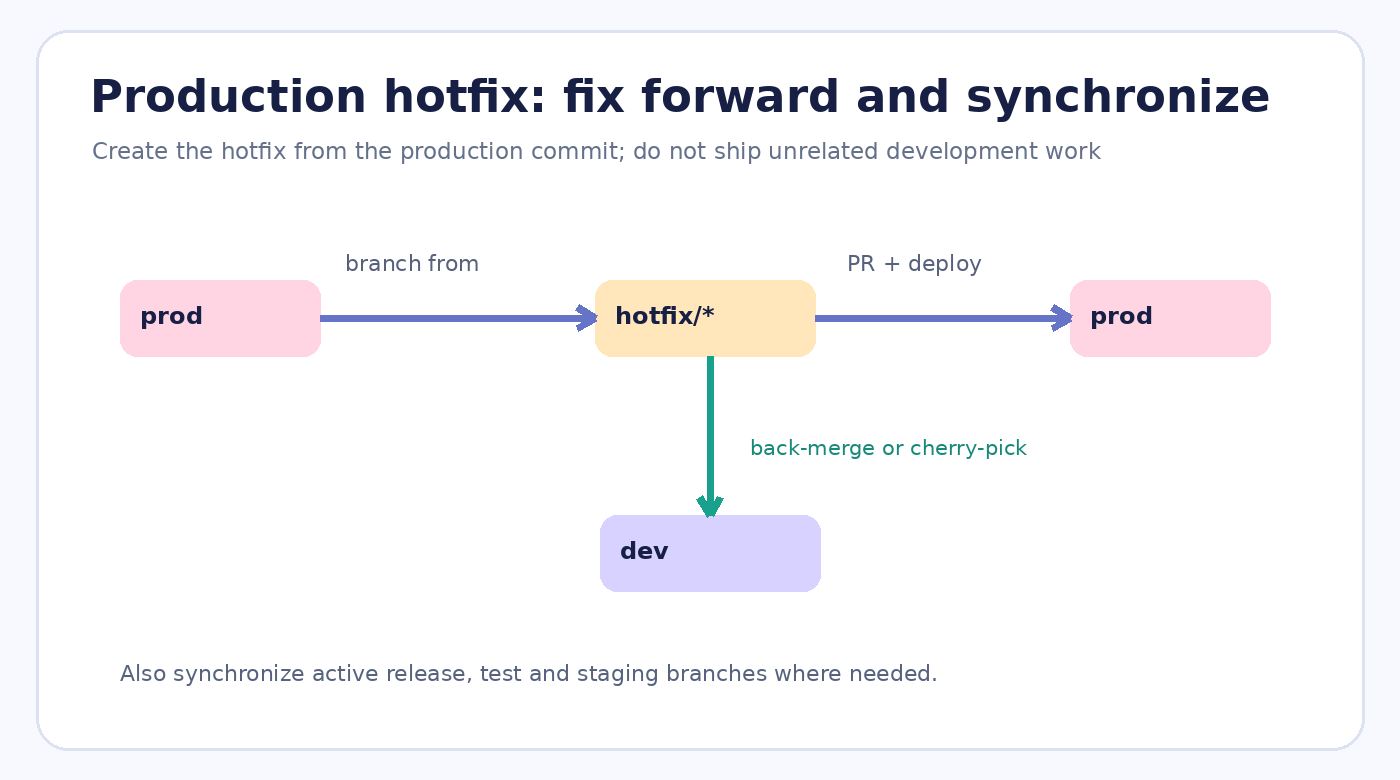
Two common ways to synchronize:
Option A: Merge the updated production branch back into development. Use this when the branch histories and policies make a normal merge appropriate.
git fetch origin
git switch dev
git pull --ff-only origin dev
git merge origin/prod
# Resolve conflicts, run tests, then open/push through your team's process
Option B: Cherry-pick only the fix commit. Use this when the branches have diverged significantly, or when you want to avoid merging unrelated release history.
git switch dev
git pull --ff-only origin dev
git cherry-pick <hotfix-commit-sha>
# Resolve conflicts if needed, test, and open a PR
If the fix was squash-merged, cherry-pick the resulting commit on prod, not necessarily the original feature-branch SHA. Apply the fix to any active test, staging, or release branch that would otherwise overwrite it. Avoid blindly merging older environment branches into production after a hotfix: verify they contain the fix first.
The hotfix rule: repair production quickly, then make sure every future release path contains the repair. A successful production patch that disappears in the next release is not a complete fix.
Other common branching workflows
1. Feature branching
Each feature or bug gets a short-lived branch from an integration branch. Developers open PRs, run CI, review changes, and merge. This is a good default for small and medium teams. Keep branches short-lived to avoid painful conflicts.
2. Git Flow
Git Flow commonly uses main (production), develop (integration), feature/*, release/*, and hotfix/*. A release branch allows stabilization while development continues; a hotfix starts from production and is merged back into both production and development.
Suitable when: releases are scheduled, versions are maintained for a while, and QA needs a stabilization period. Trade-off: more branches and merges, which can become cumbersome for teams deploying many times per day.
3. Trunk-based development
Developers integrate small changes frequently into one protected mainline (main or trunk). CI runs continuously, and unfinished features stay hidden behind feature flags. Release tags and deployment records identify what is in each environment.
Suitable when: you have strong automated tests, small PRs, and frequent deployments. Trade-off: requires disciplined integration and good feature-flag hygiene. A single mainline does not mean skipping review or testing.
4. Release branches and version maintenance
A product supports release/2.4 for existing enterprise customers while main develops version 2.5. A critical security fix may need to be cherry-picked or backported into both lines, tested independently, and released as separate patches.
Suitable when: you maintain several supported versions, such as SDKs, libraries, mobile apps, or enterprise installations. Trade-off: every supported line increases testing and maintenance costs.
5. Environment deployments without environment branches
A modern alternative is to maintain one mainline, build an artifact from a tagged commit, and promote that exact artifact from dev to test to staging to prod. Environments are deployment targets, not branches.
Suitable when: your team wants faster releases with fewer synchronization problems. Trade-off: you need reliable artifact tracking, deployment tooling, and environment-specific configuration management.
Which workflow should your team choose?
| Situation | A reasonable starting point | Why |
|---|---|---|
| Small SaaS team shipping daily | Trunk-based + short-lived feature branches | Fast integration and fewer long-lived conflicts |
| Enterprise team with formal QA and release approvals | Release branches or gated environment promotion | Clear validation and approval stages |
| Product with multiple supported versions | Versioned release branches | Controlled maintenance and backports |
Team maintaining dev, test, staging, prod today | Keep gates; reduce branch drift | Preserve necessary controls without needless merges |
| Urgent production incident | Hotfix from deployed revision | Avoid accidentally shipping unfinished work |
Branch names are conventions, not safety guarantees. Branch protection, CI, access control, artifact identity, rollback procedures, and monitoring are what make the workflow reliable.
Part 2: Git commands you'll use almost every day
For each command, let's start with the problem it solves.
git clone — get an existing project
Scenario: You've joined a team and need the repository on your laptop.
git clone https://github.com/example/shop-app.git
cd shop-app
git status — see what changed
Scenario: You've edited files and want to know what's staged, unstaged, or untracked.
git status
git switch and git branch — work on the right branch
Scenario: You're starting a new search feature without touching dev.
git switch dev
git pull --ff-only origin dev
git switch -c feature/search

git branch --list   # Show local branches
git switch dev     # Switch back
git switch is the clearer modern choice for changing branches; older guides often use git checkout for both branches and files.
git add and git commit — record a meaningful change
Scenario: You've finished the search form and want a reviewable commit.
git add src/components/SearchForm.tsx
git diff --cached
git commit -m "feat: add search form"
Use git add -p to stage selected hunks rather than everything at once. A commit should describe a coherent change, not simply "updates."
git diff — inspect changes before committing
Scenario: You want to check that you didn't accidentally remove an API call.
git diff                 # Unstaged changes
git diff --cached        # Staged changes
git diff dev...HEAD      # Changes on your branch since divergence
git fetch — inspect remote changes without integrating them
Scenario: A teammate pushed to dev, but you're not ready to merge it into your work.
git fetch origin
git log --oneline HEAD..origin/dev
fetch updates remote-tracking references; it does not change your working branch.
git pull — fetch and integrate remote changes
Scenario: You want your local dev updated to match the remote.
git switch dev
git pull --ff-only origin dev
pull combines fetching with an integration step. --ff-only refuses to create an unexpected merge commit if the histories diverged.
git push — share your commits
Scenario: Your feature is ready for a PR.
git push -u origin feature/search
The -u option sets the upstream branch so future git push calls are simpler.
git merge — integrate a completed feature
Scenario: A feature has passed review and you want its history included in dev.
git switch dev
git merge feature/search
On protected branches, prefer merging through your Git hosting platform's PR workflow. Merge may be fast-forward or create a merge commit depending on history and settings.
git log and git show — understand what happened
Scenario: A regression appeared, and you need to inspect recent commits.
git log --oneline --graph --decorate --all
git show <commit-sha>
git restore — discard or unstage local changes
Scenario: You changed a file by mistake, or staged it too early.
git restore --staged src/config.ts   # Unstage; keep edits
git restore src/config.ts            # Discard unstaged edits!
Be careful: the second command discards local changes to that file.
git tag — identify a shipped version
Scenario: Version 2.1.0 is live, and you need a permanent release reference.
git tag -a v2.1.0 -m "Release 2.1.0"
git push origin v2.1.0
Create the tag on the exact commit that was deployed, and use immutable release tags as a team convention.
Part 3: Advanced Git commands, explained through real problems
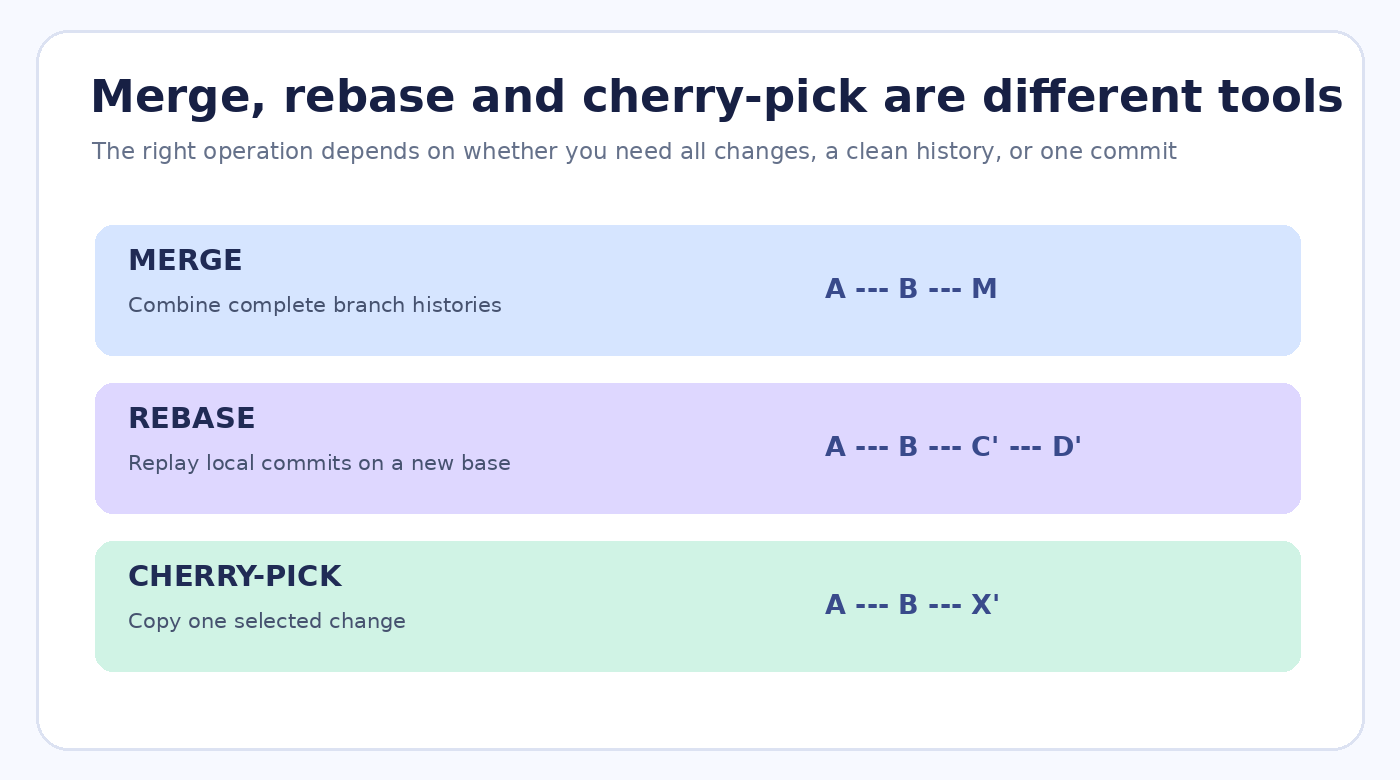
git cherry-pick — take one fix, not an entire branch
Scenario: dev contains five unfinished features, but one commit fixes a payment bug that production needs now. You want only that fix.
git switch -c hotfix/payment origin/prod
git cherry-pick abc1234
# Test and open a PR into prod
Cherry-pick creates a new commit with the selected change, so the SHA is usually different. If conflicts arise, resolve them, stage the resolved files, and run git cherry-pick --continue (or --abort to stop). Use this for selective backports, not as a replacement for normal integration of every feature.
git rebase — bring a feature branch up to date cleanly
Scenario: You started feature/search on Monday, and dev has moved forward. You want your local commits replayed on top of the newest dev.
git fetch origin
git switch feature/search
git rebase origin/dev
# Resolve conflicts if any, then:
git add <resolved-files>
git rebase --continue
# Or abandon the attempt: git rebase --abort
Rebase rewrites commit history. It's useful for your own local feature work, but avoid rebasing shared branches that teammates are already using. If you must update a previously pushed personal branch after rebasing, coordinate and use git push --force-with-lease, not an indiscriminate --force.
git rebase -i — clean up commits before review
Scenario: Your PR has commits named "fix typo," "oops," and "try again." You want a readable history.
git rebase -i HEAD~3
In the editor, change pick to squash, fixup, or reword as appropriate. Only rewrite commits when doing so won't disrupt collaborators.
git revert — undo a bad commit safely on a shared branch
Scenario: A bad change has already reached prod. You need to undo it without rewriting published history.
git switch -c revert/broken-checkout origin/prod
git revert abc1234
# Test and open a PR into prod
Revert adds a new commit that reverses the selected commit's changes. This is usually preferable to resetting a shared production branch. Reverting a merge commit requires additional care, including selecting the mainline parent with -m.
git reset — move your local branch pointer
Scenario: You made a local commit too early and want to redo it.
git reset --soft HEAD~1   # Undo commit; keep changes staged
git reset --mixed HEAD~1  # Undo commit; keep changes unstaged
Dangerous alternative: git reset --hard HEAD~1 also discards tracked working-tree changes to match the target commit. Don't use hard reset casually, and don't rewrite published production history as a rollback strategy.
git stash — park unfinished work temporarily
Scenario: You're halfway through a feature when an urgent bug needs your attention.
git stash push -u -m "WIP: search filters"
git switch dev
# Work on the urgent task...
git switch feature/search
git stash list
git stash pop
-u includes untracked files. pop reapplies the stash and removes it if successful; use git stash apply if you prefer to keep the saved copy.
git reflog — recover a commit you thought was lost
Scenario: You accidentally reset your branch and can't find yesterday's commit.
git reflog
# Find the previous commit SHA, then create a recovery branch
git switch -c recovery/lost-work <commit-sha>
Reflog records local reference movements and can be a lifesaver, but entries are local and can expire. It is not a substitute for backups or pushed branches.
git bisect — find which commit introduced a regression
Scenario: Login worked two weeks ago but fails today. There are 80 commits between the known-good and current bad version.
git bisect start
git bisect bad HEAD
git bisect good <known-good-sha>
# Test the checked-out commit; repeat:
git bisect good   # or: git bisect bad
git bisect reset  # Restore original checkout when done
Git repeatedly narrows the search range. For a reproducible regression, you can automate the test using git bisect run <test-command>.
git worktree — work on two branches without constant switching
Scenario: You're implementing a feature but need to investigate a production issue without disturbing your current working directory.
git fetch origin
git worktree add -b hotfix/login ../shop-hotfix origin/prod
cd ../shop-hotfix
# Investigate and commit independently
# Later, from the main repo:
git worktree remove ../shop-hotfix
Each worktree has its own working directory, while sharing repository history. This is especially useful for parallel tasks and code reviews.
git blame — find the context behind a line
Scenario: A validation rule looks unusual, and you want to find the commit that introduced it.
git blame src/validation.ts
Use blame to understand history, not to assign fault. Follow the commit to its PR or issue for the full context.
git clean — remove untracked generated files
Scenario: Your local build created untracked files that interfere with testing.
git clean -nd  # Preview untracked directories and files
git clean -fd  # Delete them — use only after reviewing preview
This can permanently remove untracked work. Ignored files require different flags; don't add them casually.
git revert vs reset vs restore: which undo tool?
| Need | Command | What it does |
|---|---|---|
| Undo a published bad commit | git revert <sha> | Creates a new inverse commit |
| Undo your last local commit but keep staged edits | git reset --soft HEAD~1 | Moves branch pointer; retains index |
| Unstage a file | git restore --staged file | Keeps your file edits |
| Discard unstaged edits in a tracked file | git restore file | Replaces local edits; destructive |
| Recover a lost local commit | git reflog | Helps locate prior HEAD positions |
Putting it together: a realistic release week
Monday: A developer branches from dev, builds a feature, uses git status, diff, add, and commit, then opens a PR. The feature merges after CI and review.
Tuesday: The team cuts a release candidate. It moves through automated testing and staging. A release manager verifies the deployed artifact and approves production promotion.
Wednesday: Production reveals a rare payment timeout. A developer branches from the actual production revision, fixes the bug, and merges a reviewed hotfix. The pipeline deploys the patch and monitors errors.
Thursday: The hotfix is merged or cherry-picked back into active development and release branches. Tests confirm the issue won't return with the next release.
Friday: Another developer discovers a regression. git bisect identifies the responsible commit; git show explains the change. The team fixes it, reviews the PR, and continues shipping.
Notice how different commands solve different problems. The workflow isn't about memorizing syntax; it's about preserving a reliable history while moving the right changes to the right place.
A practical Git workflow checklist
Before merging or deploying, ask:
- Source: Am I branching from the correct base, especially for a hotfix?
- Scope: Does this PR contain only the changes intended for this release?
- Quality: Have CI, tests, review, and required security checks passed?
- Traceability: Can I identify the exact commit and artifact running in production?
- Promotion: Am I deploying the same validated artifact or rebuilding unexpectedly?
- Recovery: Do I know how to revert code and handle database or configuration changes safely?
- Synchronization: Will a production hotfix also be present in every future release line?
- Protection: Are important branches protected against accidental pushes and history rewrites?
Final thoughts
There is no universal best Git branching strategy. A startup deploying several times a day may thrive with trunk-based development and feature flags. A regulated enterprise might need release candidates, explicit approvals, and longer support windows. A library maintaining multiple versions may need release branches and selective cherry-picks.
Start with the simplest workflow that supports your release cadence, team size, testing maturity, and compliance needs. Add complexity only when it solves a real problem.
And remember these three ideas: branches organize code, pipelines deliver software, and a hotfix isn't finished until the fix is included in future releases.